

Generate MiniMax H3 Videos Free Using Google Colab's L4 GPU Credits
The author demonstrates how Google AI Pro subscribers can use 200 monthly Colab compute units to run the MiniMax H3 video model on an L4 GPU, generating a 5-second 640x384 video in 2m47s, and shares a ready-to-use Colab notebook with cost analysis showing ~86 hours of L4 runtime per month.
Reading font

Overview
Google AI Pro members receive 200 Colab compute units each month, which can be used to attach an L4 GPU in Google Colab at no extra cost. The author uses this free quota to run the open-source MiniMax H3 video generation model via ComfyUI, producing a 5-second, 640×384 MP4 with audio in 2 minutes 47 seconds. The article walks through the entire workflow — from verifying the quota to building a reusable notebook — and includes a cost breakdown showing the L4 consumes about 2.33 units per hour, yielding roughly 86 hours of GPU time per month.
Prerequisites
A paid Google AI Pro account (trial accounts do not receive the 200-unit allowance).
Google Colab CLI installed locally ( https://github.com/googlecolab/google-colab-cli).
An AI coding assistant that can run terminal commands (e.g., Antigravity, Claude Code, Codex).
Step-by-Step Workflow
1. Check Available Compute Units
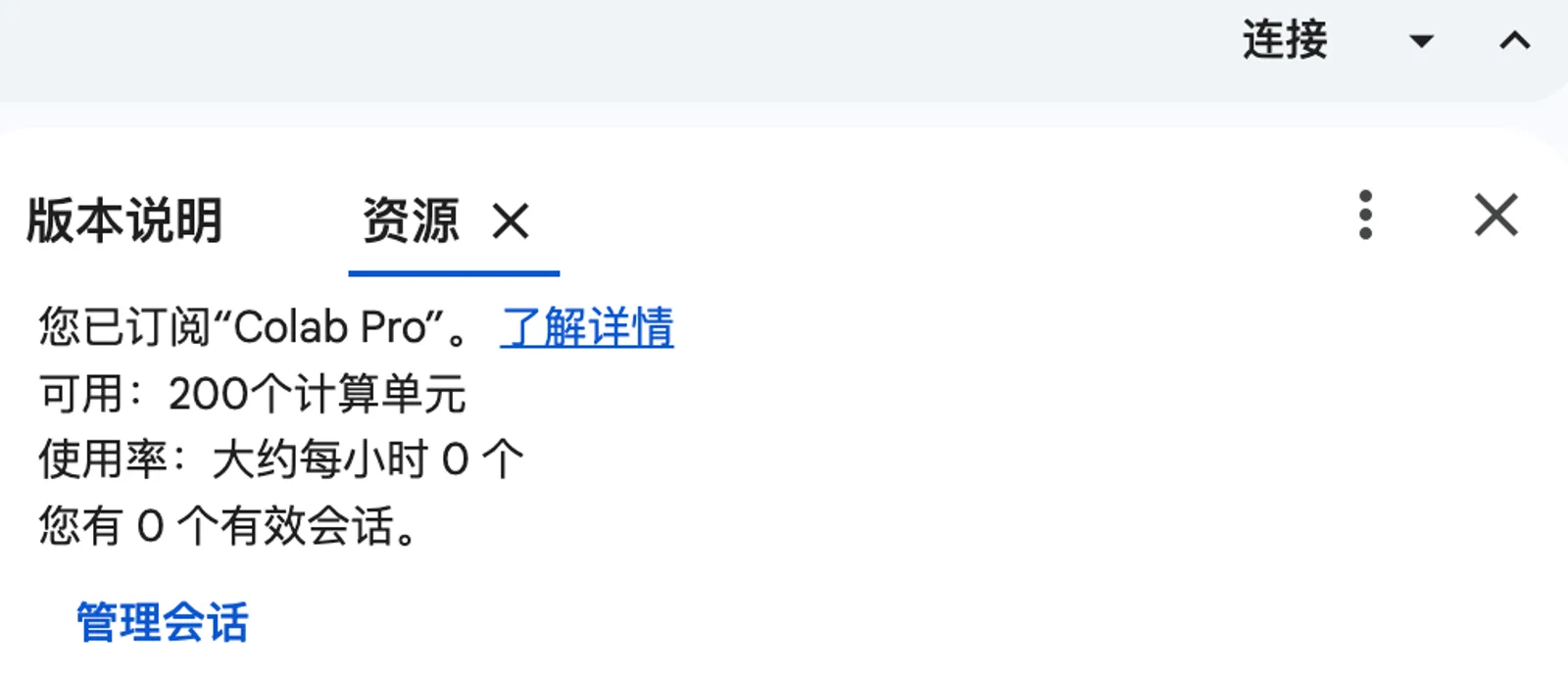
Open Google Colab ( https://colab.research.google.com/), create a new notebook, click the arrow next to "Connect" → "View resources". The panel shows 200 available units before any GPU is attached.
2. Authenticate and Launch L4 via Colab CLI
Run colab --auth=oauth2 usage in a local terminal. A browser window opens for OAuth consent; choose the same Pro account and paste the returned authorization code back into the terminal. Once authenticated, request an L4 GPU runtime.

3. Install ComfyUI and Download Quantized H3 Weights
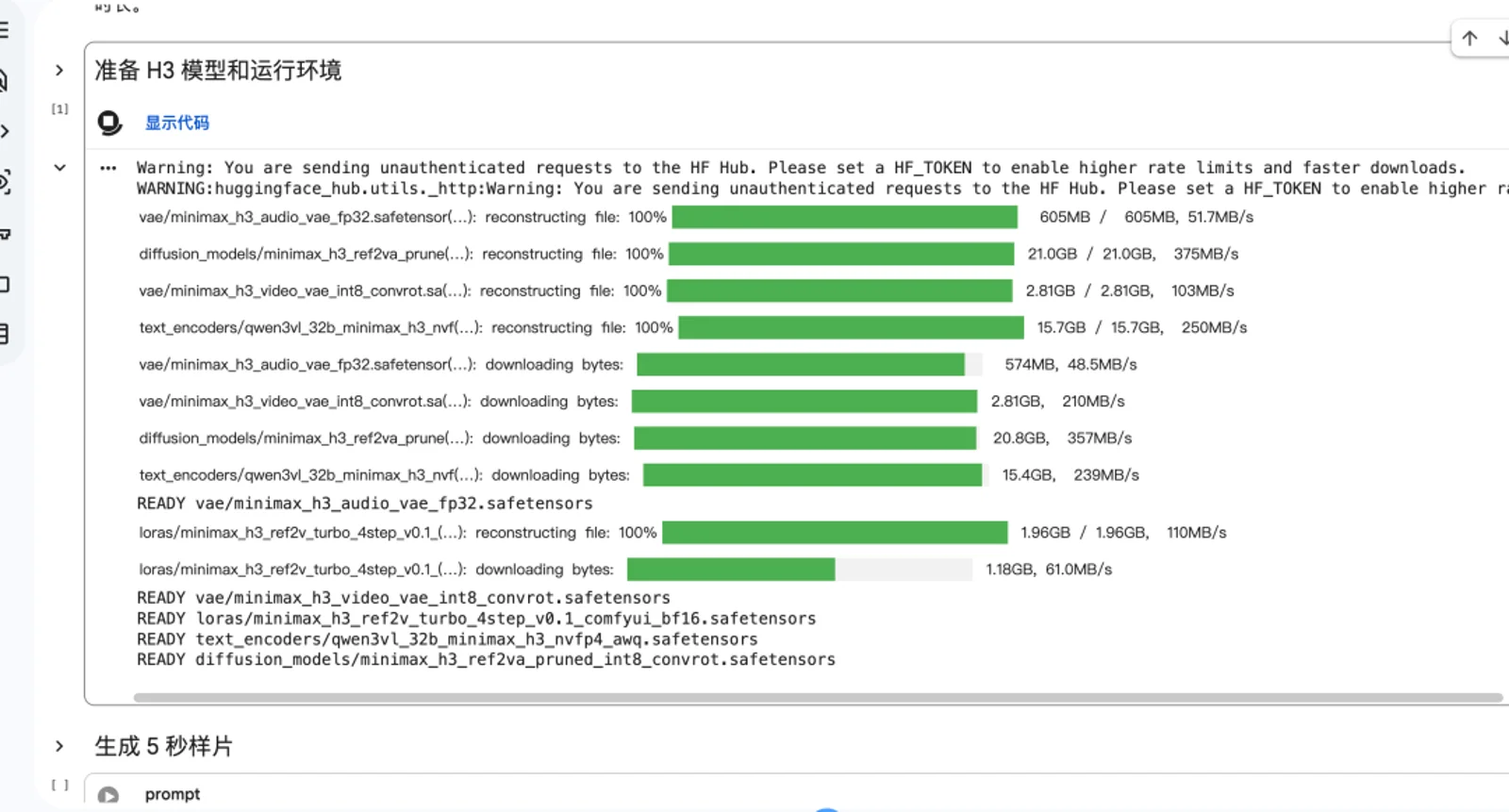
The cloud runtime installs ComfyUI and pulls the ~42 GB quantized MiniMax H3 weights. No local disk space is used. Each weight file shows READY when finished. An HF_TOKEN warning may appear but public weights download without it.
4. Generate First Video
Prompt: "White porcelain teapot pouring tea into a blue cup, water stops, cup surface still rippling." The 5-second MP4 (640×384, stereo audio with faint water sound) completes in 2m47s.

Verifying GPU Allocation
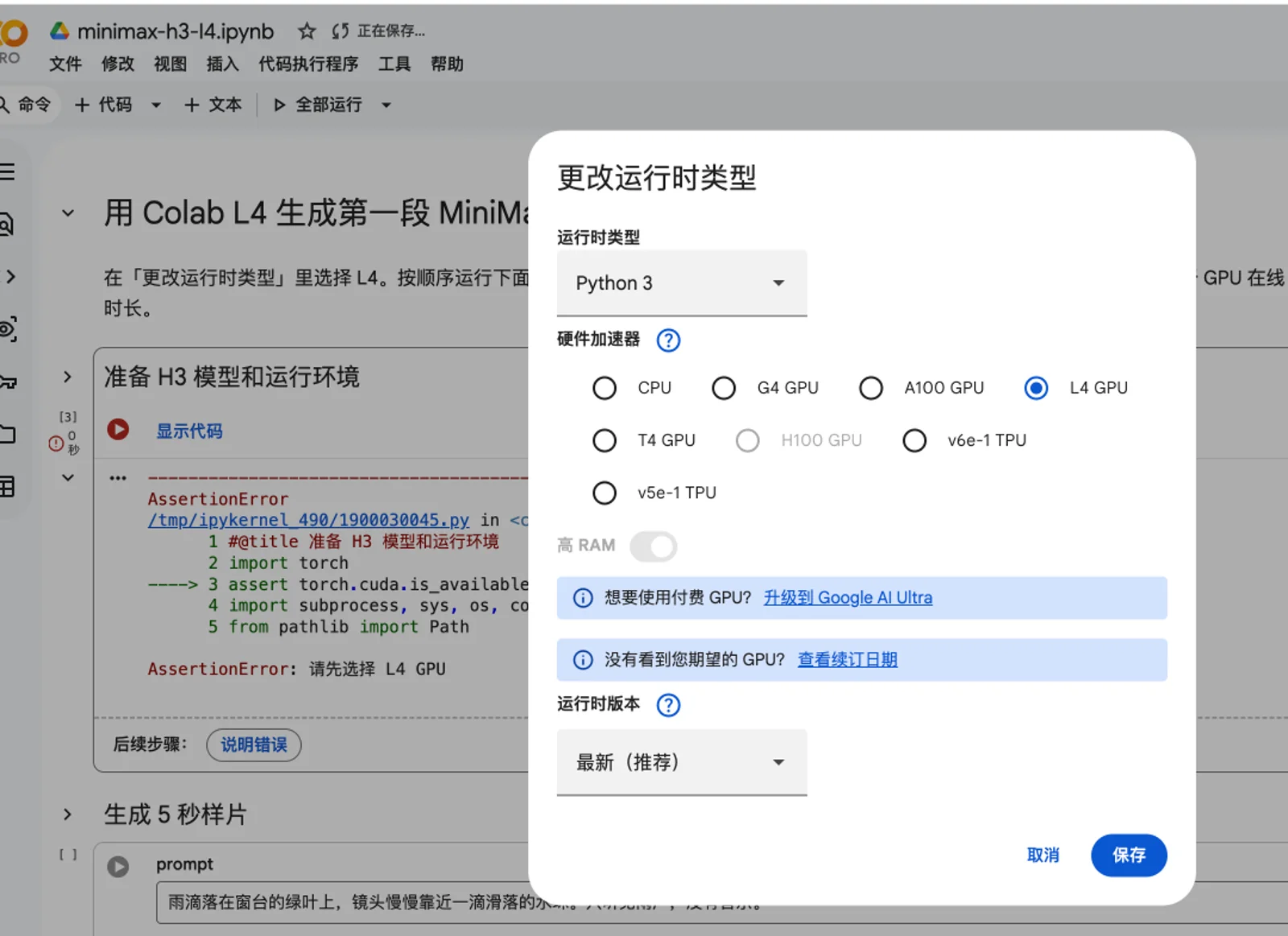
After selecting "L4 GPU" in Runtime → Change runtime type, the UI may still run on an old T4/CPU session. Add a code cell and run:
!nvidia-smi --query-gpu=name --format=csv,noheaderIf output is not L4 or nvidia-smi is missing, download any needed files, then disconnect and delete the runtime (top-right arrow → "Disconnect and delete runtime"), reconnect, select L4 again, and re-verify before downloading weights.
Building a Reusable Notebook
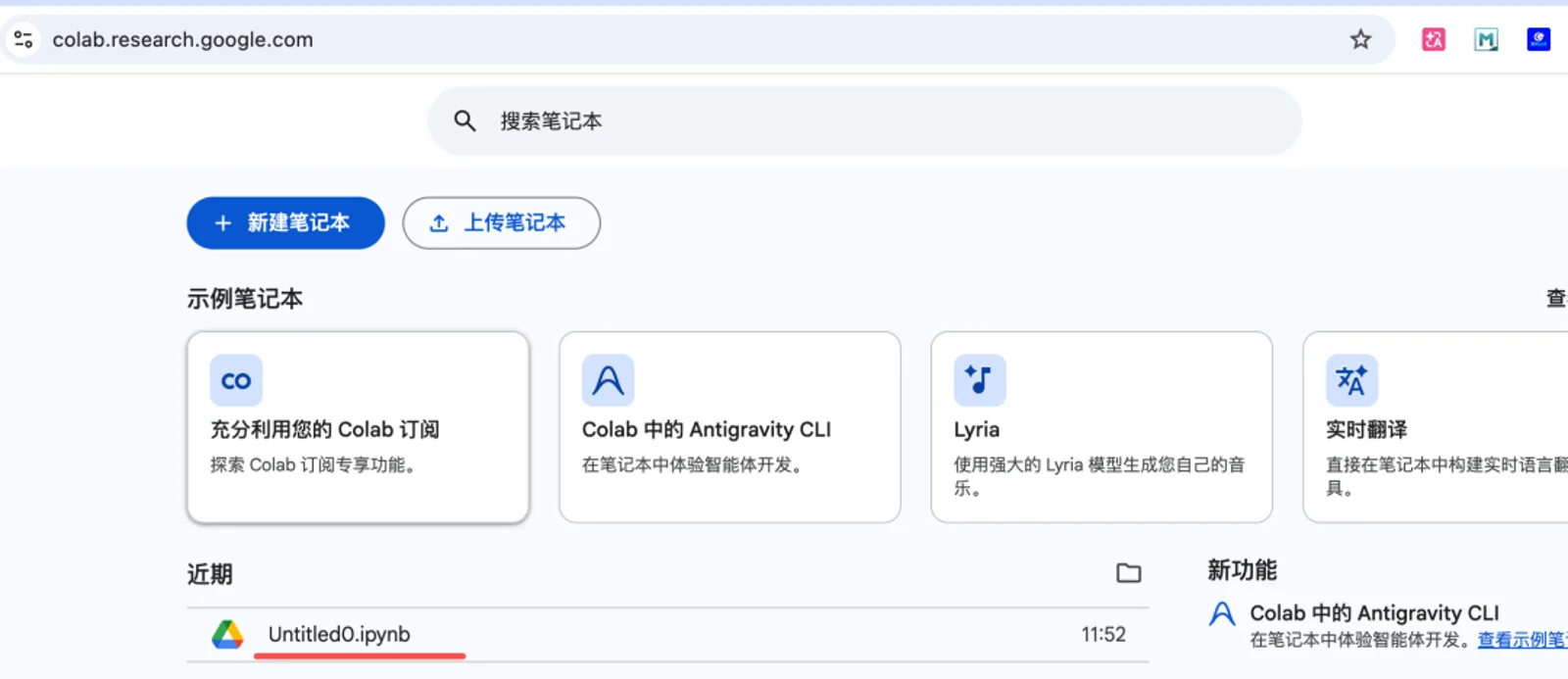
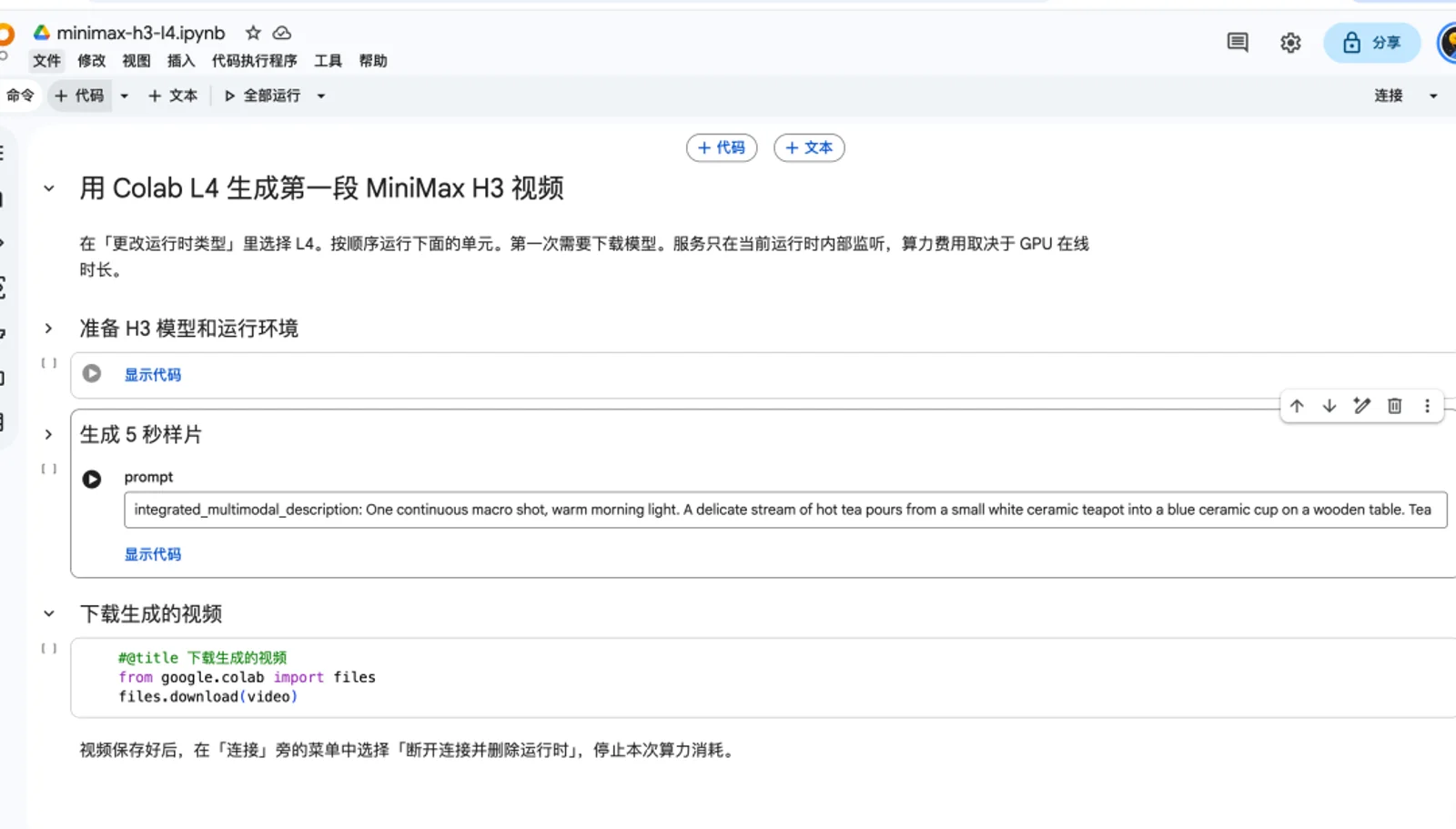
To avoid repeated command-line runs, the author asked the AI assistant to package the working flow into a notebook minimax-h3-l4.ipynb with three sections: prepare model, generate 5-second clip, download video. Upload via Colab homepage → "Upload notebook".
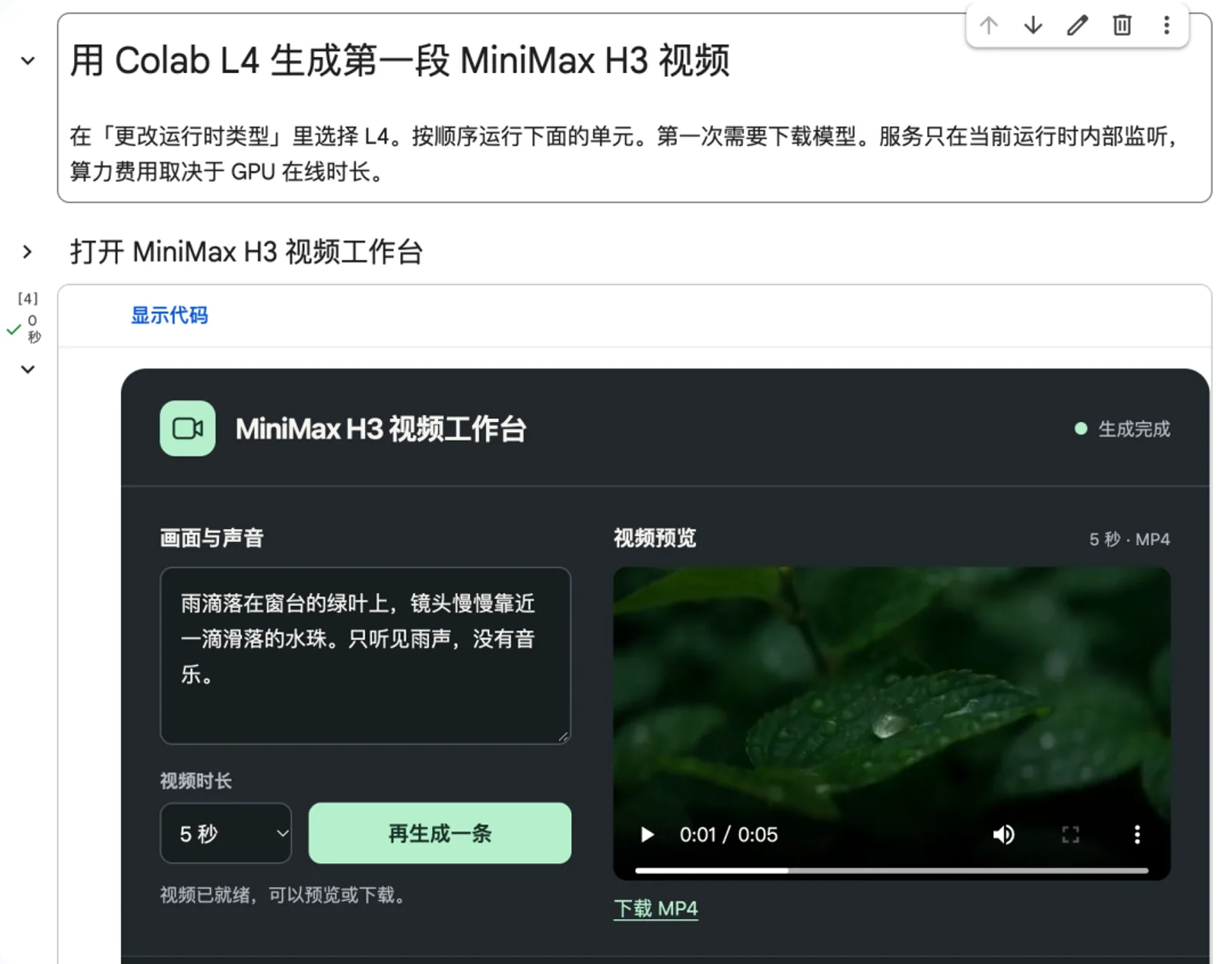
Later iterations merged steps into a single panel with a duration dropdown (5s, 10s, 15s). A second test prompt — "Raindrops on windowsill green leaves, camera slowly closes in on a sliding droplet. Only rain sound, no music." — generated successfully with preview and download buttons.
Cost Analysis
With both L4 and a CPU session running, the panel shows 2.41 units/hour. CPU alone uses 0.08 units/hour. Difference: 2.33 units/hour for L4 . At that rate, 200 units/month ≈ 86 hours of L4 time . Rates vary by GPU type; recalculate from the panel after each launch.
Cleanup and Best Practices
GPU billing continues while the runtime stays alive, even if idle. Best practice: write all prompts beforehand, launch once, generate all clips, download MP4s, then immediately click "Disconnect and delete runtime" and confirm both active sessions and hourly consumption drop to zero before closing the tab.
Alternative: Community Toybox Notebook
For a no-setup option, open the community H3 Toybox notebook directly:
https://colab.research.google.com/github/dseditor/minimax-h3-colab/blob/main/H3_Toybox.ipynband follow its steps.
References
[1] Google Colab: https://colab.research.google.com/ [2] Colab CLI: https://github.com/googlecolab/google-colab-cli [3] Community H3 deployment example: https://github.com/dseditor/minimax-h3-colab [4] Community H3 Toybox notebook:
https://colab.research.google.com/github/dseditor/minimax-h3-colab/blob/main/H3_Toybox.ipynbFor questions about attribution, corrections or content rights, please contactand we will review it promptly.