

One-Click Uninstall OpenClaw (小龙虾) on Mac & Windows: Complete Cleanup Guide
This guide provides copy-paste terminal commands to fully uninstall OpenClaw on macOS and Windows, including removal of global packages, launch agents, state directories, and scheduled tasks, with verification steps to confirm clean removal, plus an option to delegate the cleanup to AI assistant Codex.
Reading font

OpenClaw (小龙虾) is a powerful self-hosted AI agent that can read/write files, execute commands, connect to services, and persist state. Because of its broad capabilities, the Microsoft Security Blog (February 19, 2026) warned that such agents should be treated as "untrusted code execution environments with persistent credentials" and not run on standard personal or enterprise workstations. The blog highlighted three risk categories:
Credentials and accessible data could be misused, leaked, or exfiltrated.
Persistent state and "memory" may remain long-term; if corrupted, they can cause continuous execution of erroneous instructions.
Support for plugins, skills, external input, and command execution creates a much larger attack surface than ordinary CLI tools.
If you no longer use OpenClaw, the safest practice is to remove it completely. Below are ready-to-run command sequences for macOS and Windows, followed by verification steps.
macOS One-Click Uninstall
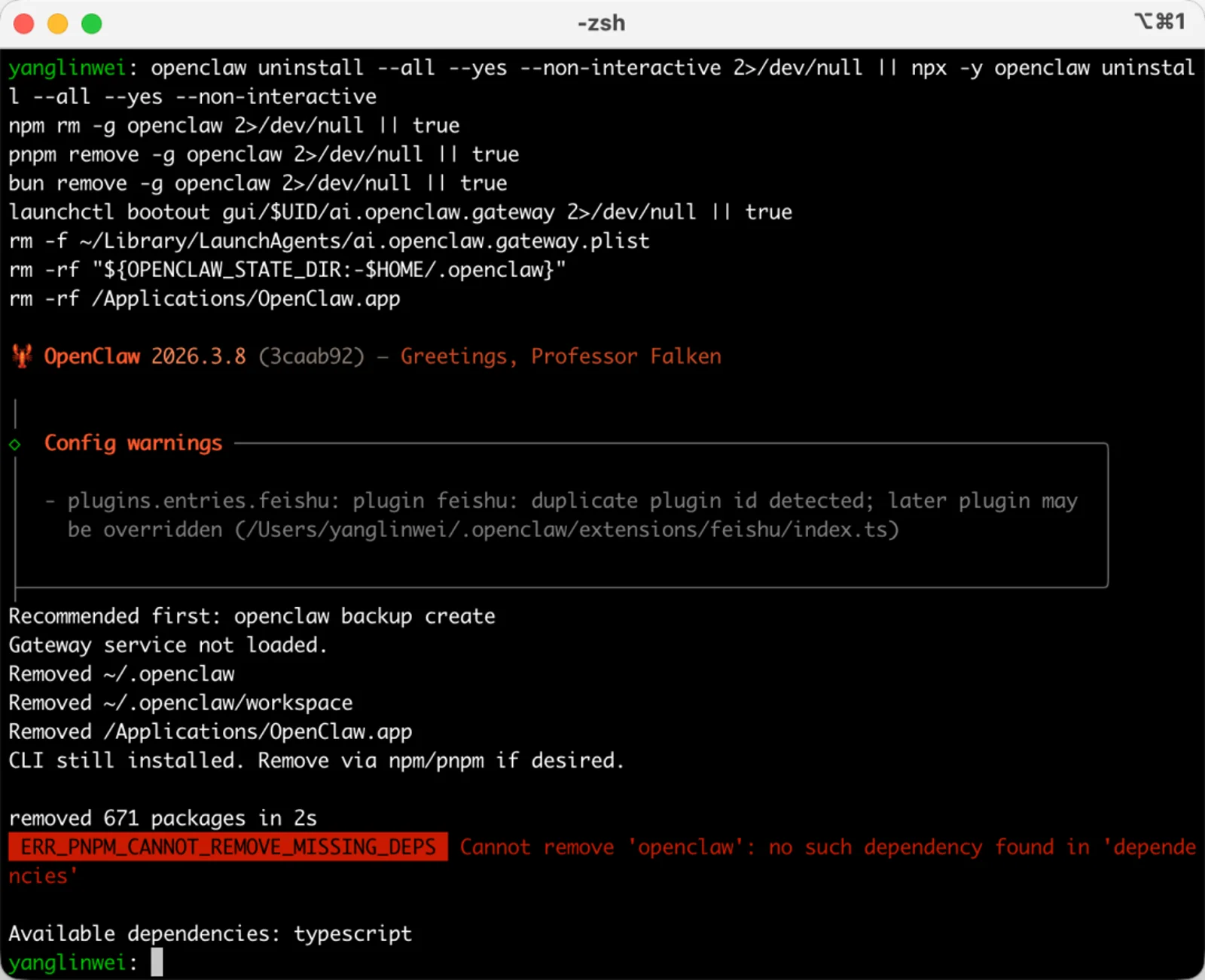
Run the following block in a macOS terminal. It attempts the built-in uninstaller, clears global npm/pnpm/bun installations, stops and removes the LaunchAgent, and deletes the default state directory, workspace, and the .app bundle.
openclaw uninstall --all --yes --non-interactive 2>/dev/null || npx -y openclaw uninstall --all --yes --non-interactive
npm rm -g openclaw 2>/dev/null || true
pnpm remove -g openclaw 2>/dev/null || true
bun remove -g openclaw 2>/dev/null || true
launchctl bootout gui/$UID/ai.openclaw.gateway 2>/dev/null || true
rm -f ~/Library/LaunchAgents/ai.openclaw.gateway.plist
rm -rf "${OPENCLAW_STATE_DIR:-$HOME/.openclaw}"
rm -rf /Applications/OpenClaw.app
If you used multiple profiles, also check for and delete directories like ~/.openclaw-test and ~/.openclaw-prod.
Verification on macOS
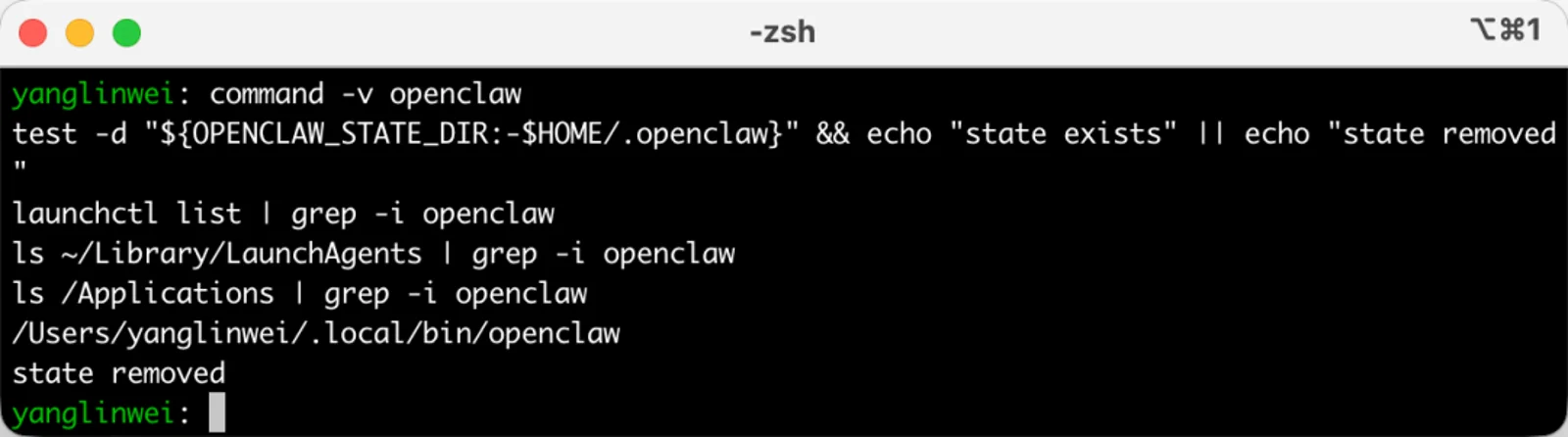
Run these commands to confirm removal:
command -v openclaw
test -d "${OPENCLAW_STATE_DIR:-$HOME/.openclaw}" && echo "state exists" || echo "state removed"
launchctl list | grep -i openclaw
ls ~/Library/LaunchAgents | grep -i openclaw
ls /Applications | grep -i openclaw
Successful uninstall shows state removed and no matches for the other checks.
Windows One-Click Uninstall (PowerShell as Administrator)
OpenClaw's official docs recommend running via WSL2, but if you installed it directly in Windows PowerShell, use the following block in an elevated PowerShell session (Win+X → PowerShell Admin).
openclaw uninstall --all --yes --non-interactive
if ($LASTEXITCODE -ne 0) { npx -y openclaw uninstall --all --yes --non-interactive }
npm rm -g openclaw 2>$null
pnpm remove -g openclaw 2>$null
bun remove -g openclaw 2>$null
schtasks /Delete /F /TN "OpenClaw Gateway" 2>$null
Remove-Item -Force "$env:USERPROFILE\.openclaw\gateway.cmd" -ErrorAction SilentlyContinue
Remove-Item -Recurse -Force "$env:USERPROFILE\.openclaw" -ErrorAction SilentlyContinue
If you used profile mode, list and delete any extra profile directories:
Get-ChildItem $env:USERPROFILE -Force | Where-Object { $_.Name -like ".openclaw-*" }For each found profile (e.g., .openclaw-test), run:
Remove-Item -Recurse -Force "$env:USERPROFILE\.openclaw-test" -ErrorAction SilentlyContinueVerification on Windows
Run these commands; ideal results are no output for Get-Command, False for Test-Path, and no task found for Get-ScheduledTask.
Get-Command openclaw -ErrorAction SilentlyContinue
Test-Path "$env:USERPROFILE\.openclaw"
Get-ScheduledTask -TaskName "OpenClaw Gateway" -ErrorAction SilentlyContinue
Optionally check npm global list for leftovers: npm list -g --depth=0 | Select-String openclaw No matches means clean removal.
Delegate Uninstall to Codex (AI)
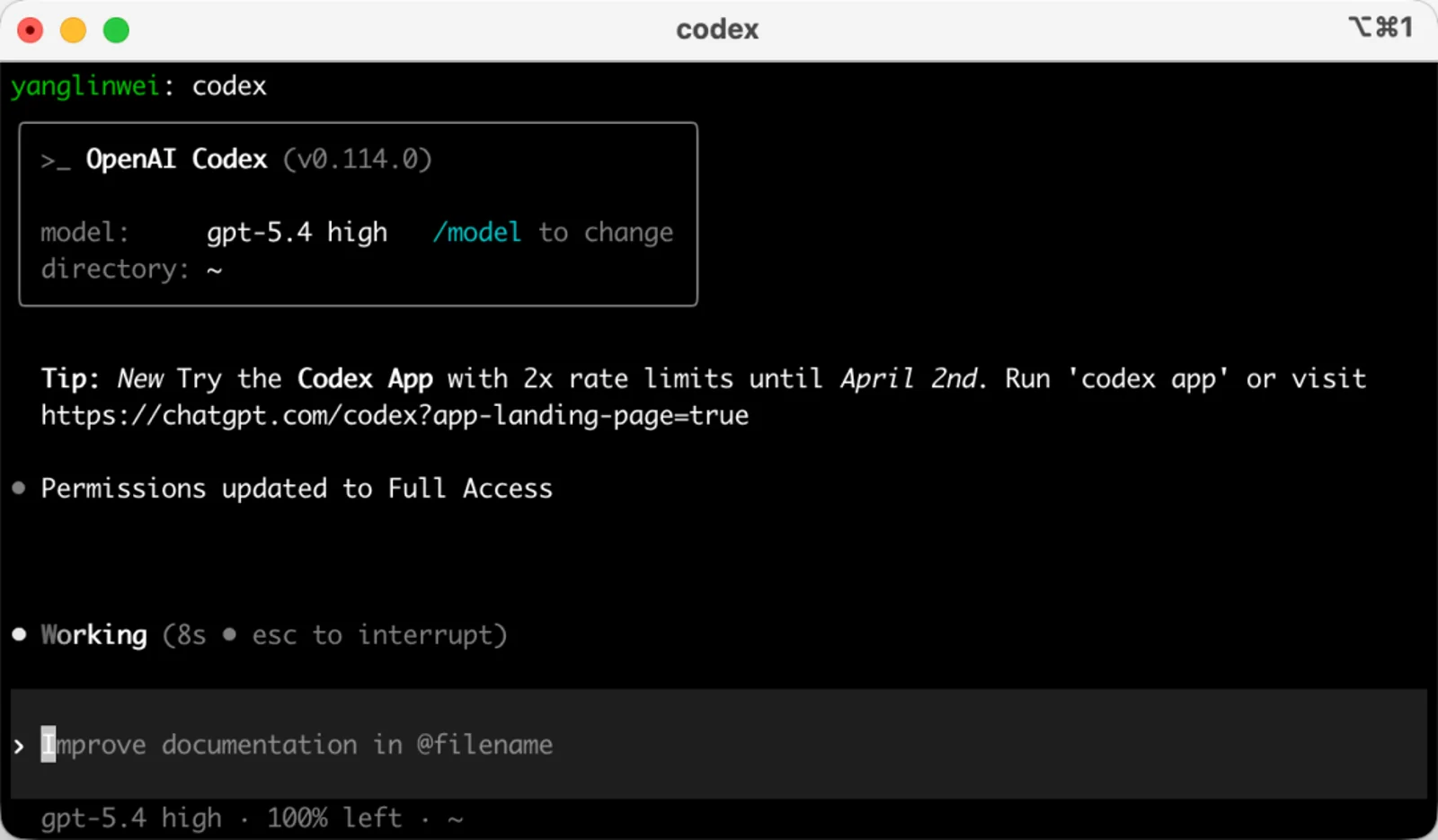
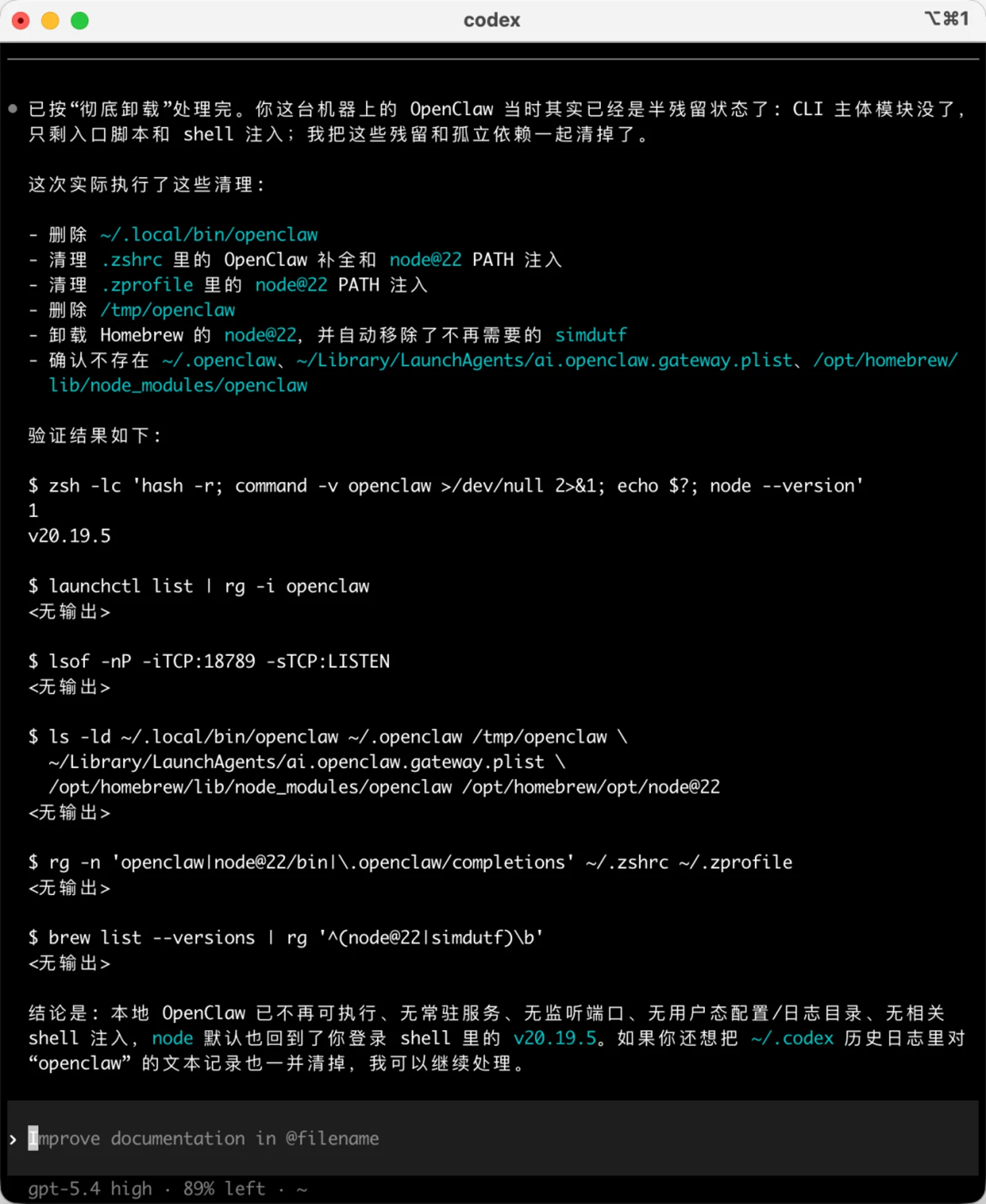
If you prefer not to run commands manually, you can ask Codex (OpenAI's GPT-5.4 model) to perform the full uninstall and show verification results. Example prompt: "Please help me completely uninstall local OpenClaw (not just disable) and paste the verification results after execution."
Installing a tool is easy, but true security hygiene means cleaning it up when no longer needed. For a high-privilege agent like OpenClaw, complete removal returns your system to a simpler, cleaner state.